Getting your data in
Cloud Structural Analysis opens on a demo dataset so you can explore. Switch to Upload or Enter data to look at your own readings.
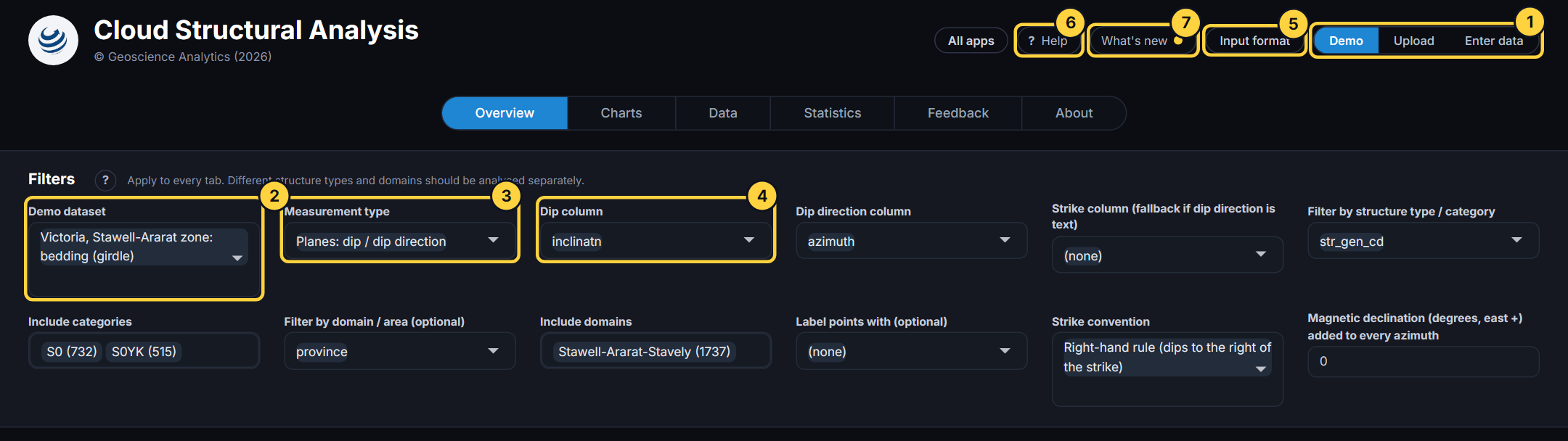
- Demo / Upload / Enter data: Demo shows the bundled datasets. Upload takes your own CSV or Excel file (up to 25 MB). Enter data lets you type a few readings in and plots them as you go.
- Demo dataset: Which of the bundled datasets to look at. With Upload this becomes the file box, and Excel files add a sheet choice.
- Measurement type: What your two columns are: planes (dip and dip direction, or strike and dip), lines (plunge and trend), strike, dip and rake, or alpha and beta from oriented core. The columns below are matched to it.
- Dip column: The column for the first angle. The app picks the likeliest by name and tells you what it found; change it if it chose wrongly.
- Input format: Opens the page that shows how a file should look, with templates to download and the field list.
- Help: Opens this help. The ? beside a panel title explains that panel.
- What’s new: What has changed in each release. A dot shows until you have looked at the latest.