Get ready to check certificates
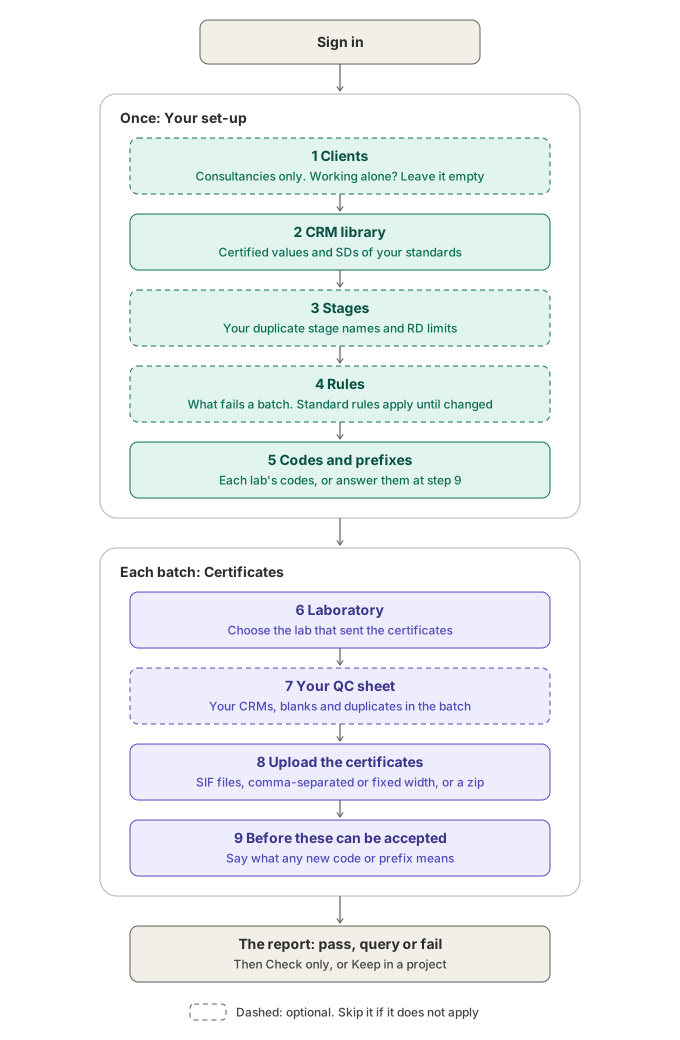
What do I set up before I upload a lab certificate? The steps in order: your set-up once, then the laboratory, your QC sheet and the certificates for each batch.
At the end you know what to set up once, what to give the app for each batch, and in what order.
The Lab files tab has two parts. Your set-up, at the top, is done once and kept with your account. Certificates, below it, is done for each batch the laboratory sends. Dashed steps are optional: skip them if they do not apply.
Before you begin
- An account. Signed out, the set-up is not kept: load your CRM values on the CRM certified values card on each visit instead.
- Your standards table, exported from your database, or the CRM template filled in.
Steps
- Sign in, then select the Lab files tab.
- Under Your set-up, add Clients only if you work for several companies. Working for yourself or one company? Leave it empty. Add a client and give it its own set-up.
- Fill the CRM library with your standards’ certified values and SDs. Save CRM values to your library.
- Optionally, load your own Stages and change the Rules. Until you do, the app uses its standard stages and rules.
- Under Codes and prefixes, add each laboratory’s result codes and row prefixes. You can also answer them on the card Before these can be accepted at your first upload.
- For each batch, under Certificates, choose the Laboratory, load Your QC sheet if you have one, then upload the certificates. Upload a laboratory certificate.
Result
Each certificate gets a verdict of Pass, Query or Fail, judged against your library, your stages and your rules. The set-up is used again for every batch, so later batches need only step 6.
If something goes wrong
- The lab’s standards are listed but not checked. The library has no certified values for them. Add them to the CRM library.
- The card Before these can be accepted appears every time. Tick Remember them for my account when you answer it, or add the codes under Codes and prefixes.
Next steps
- Load the example certificates and read the report, to see every step with made-up data.