Getting your data in
QC Analytical Results opens on the demo data, which anyone can use without an account.
QC Analytical Results opens on the demo data, which anyone can use without an account. To look at your own results, switch to Upload. On the live site this needs a Geoscience Analytics Toolkit account, so the app asks you to sign in or register first. Once you are signed in, “Signed in as” in the header opens your account page, and the Overview rules you save are stored in your account. After an upload, you can save it to a project in your account and open it later from Projects.
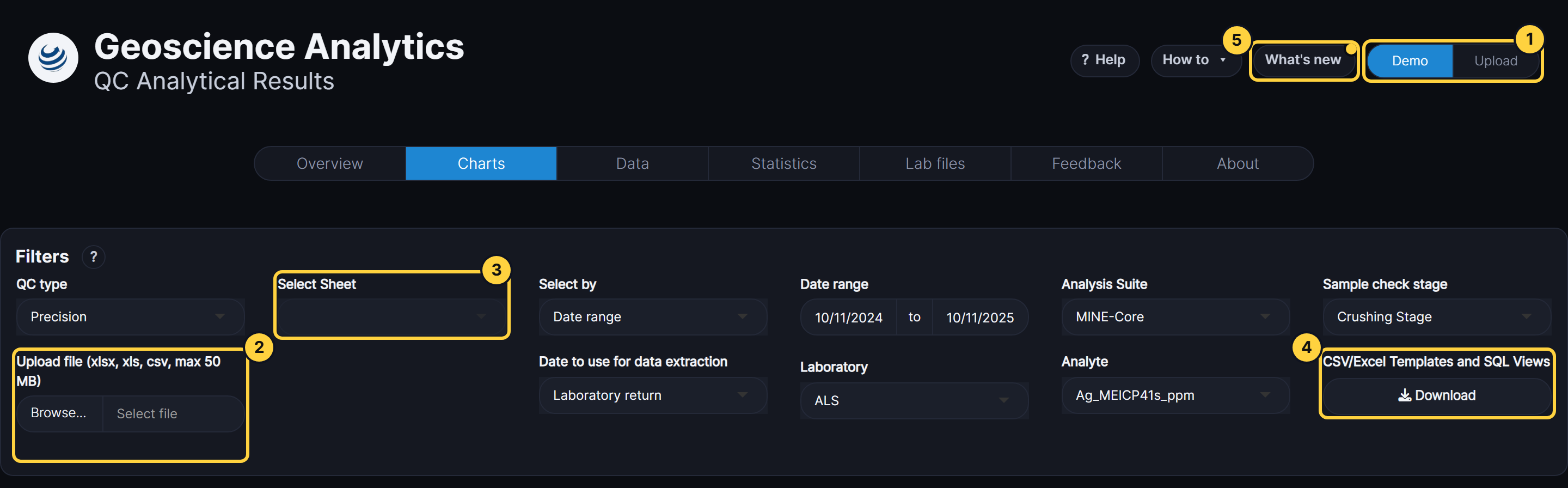
- Demo / Upload: Demo shows the example data that comes with the app. Upload lets you choose your own file. When you are signed in, Projects opens a project saved to your account. Manage projects, under the Projects button, renames a project, deletes one or all of them, or takes out an upload or a lab job. See Sign in to use your own data.
- Upload file: Choose an Excel workbook (xlsx or xls) or a CSV file of up to 50 MB, laid out like the templates. Data health on the Data tab then lists the rows it flagged, such as results written as text, dates it can’t read and CRMs with no certified SD. See Sign in to use your own data.
- Select Sheet: For a workbook with several sheets, such as duplicates, CRMs and blanks, this picks the sheet the Charts, Data and Statistics tabs use.
- CSV/Excel Templates and SQL Views: Downloads the demo data as example workbooks, with the columns QC Analytical Results expects. You also get a PDF listing every field, and SQL views that extract your data in that layout.
- What’s new: Lists what changed in each release. A dot shows until you have read the latest.