Set the rules for an account or a client
What makes a batch fail in QC Analytical Results? Set when a CRM fails, when a blank fails and when drift is a query, for your account or for one client.
At the end every certificate is judged by rules you chose, and the report’s last line states them.
The rules decide what fails a batch. A CRM can fail beyond a number of SDs, outside the library’s acceptable range, or more than a percentage from its certified value. A blank can fail over a multiple of the detection limit, or over the library’s maximum. The SD limits and the blank multiple also apply on the Overview. Duplicate limits by check stage are set in the Overview’s Rules window.
Before you begin
- Signed in.
Steps
- On the Lab files tab, scroll to Your set-up and select the Rules pill.
- With clients, choose under Rules for your account or a client. With none, the box isn’t shown and the rules are your account’s.
- Under CRMs fail, choose the test: beyond ± SD, outside the library’s range, or more than ± % of certified. Set the number beside it.
- Under Drift: 2 of 3 beyond ± SD, set the warning SD, and tick the box to query a CRM that drifts to one side.
- Under Blanks fail, choose over a multiple of the detection limit or over the library’s maximum, and set × the detection limit.
- Select Save these rules. The message confirms it, and every certificate is checked against them from now on.
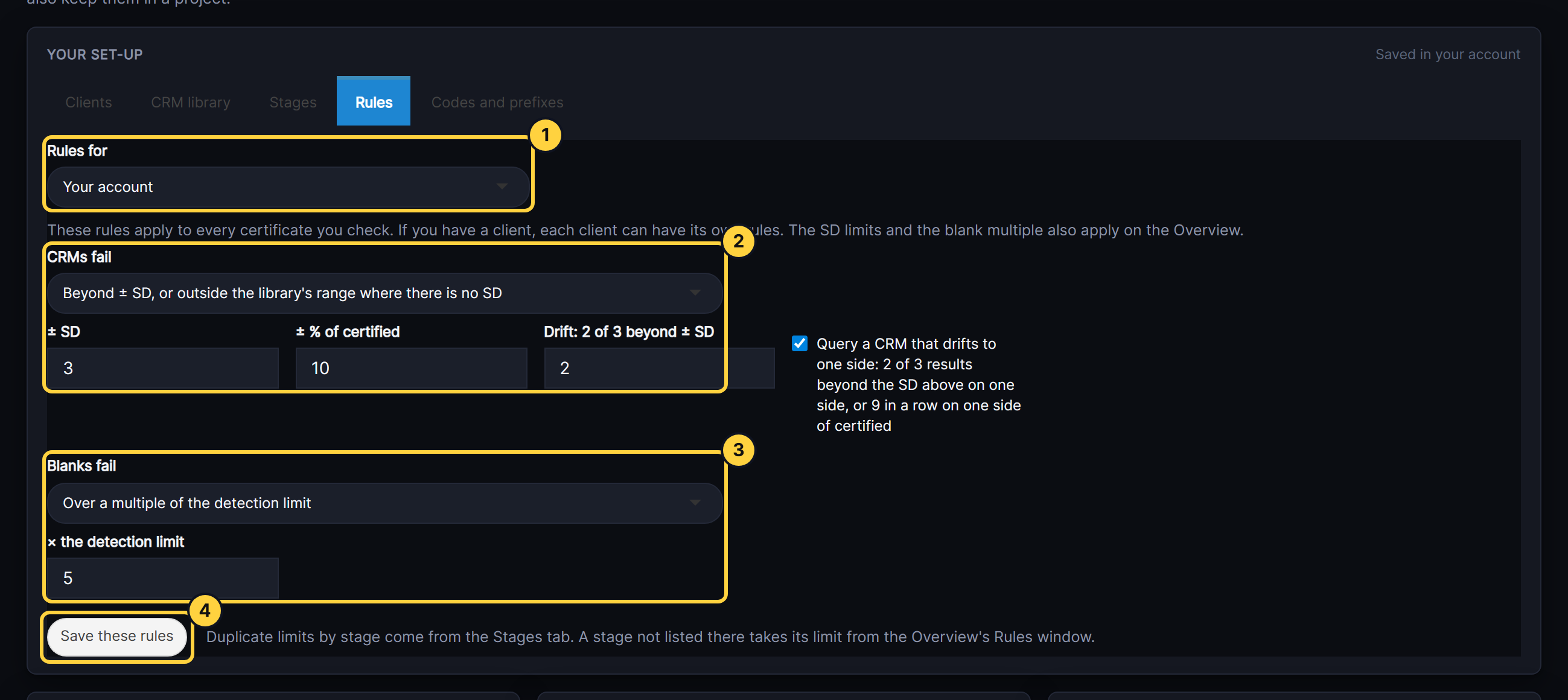
- Rules for: the account’s rules, or one client’s.
- CRMs fail: the test and its limit.
- Blanks fail: the test and its multiple.
- Save these rules.
Result
The holding area and Batch checks are checked again with the new rules, and each report’s last line reads, for example, “Standards fail beyond ±3 SD, or outside the library’s range where there is no SD.”
If something goes wrong
- Enter a percentage between 0 and 100. The percent limit is outside that range.
- A client’s rule did not change. Choose the client under Rules for before saving. The account’s rules are shown by default.
- A duplicate limit is wrong. It is not set here. Open the Overview and select Rules.