Upload a laboratory certificate
How do I check a lab certificate? Upload a SIF file from the laboratory to the Lab files tab and get its verdict and report.
At the end the certificate has a verdict and a report you can send back to the laboratory.
The app reads SIF certificates as laboratories send them: comma-separated or fixed width, with a .csv, .sif or .txt extension. It reads the certificate number, the client, the dates, the number of samples declared, each column’s method, element, unit and detection limit, then one row per sample and the lab’s own check rows.
Before you begin
- The certificate file from the laboratory, as it was sent. Do not open and re-save it in Excel, which changes dates and drops leading zeros.
- On the live site, sign in.
Steps
- Select the Lab files tab.
- Under Certificates, choose the Laboratory, or type its name, such as ALS. The certificates are read with that laboratory’s result codes and row prefixes.
- Select Choose files… and pick the certificate. The card says 1 file this session when it is read, and Batch checks lists the certificate with its verdict.
- If the card Before these can be accepted appears, say what each result code and row prefix means, then select Use these. Define result codes and row prefixes says how. The certificate is checked again with your answers.
- Read the report under Batch checks. The verdict is at the top, then the findings, then what was checked.
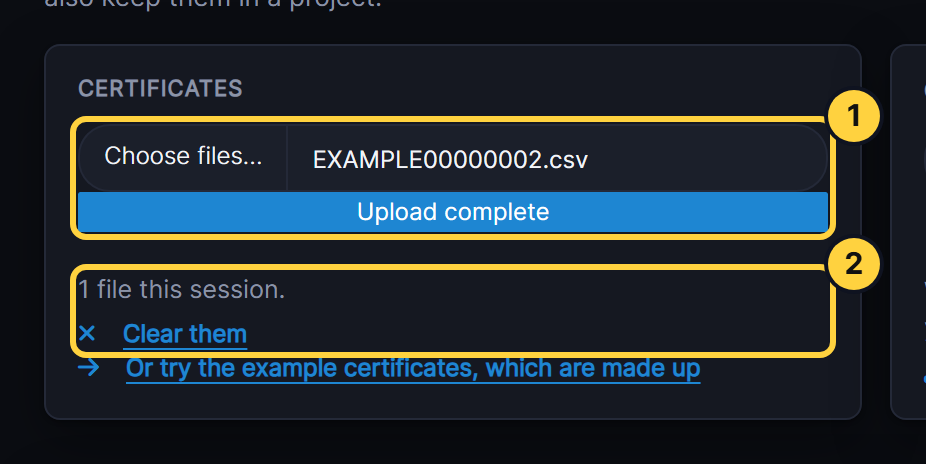
- Choose files…: the certificate, or several, or a zip.
- Files this session: how many the tab holds. Clear them starts again.
Result
Batch checks lists the certificate with Pass, Query or Fail and its counts of fails, queries and items to confirm. The report under it says why.
If something goes wrong
- Batch checks says Not read. The file is not a certificate the app can read. The file is not read as a certificate says what to check.
- The lab’s standards are listed but not checked. The app has no certified values for them. Load your CRM certified values.
- Nothing happens after Choose files. On the live site the tab needs you signed in. The Certificates card says so.
Next steps
- Read the certificate report
- Keep accepted certificates in a project, so the results open on the other tabs.