Keep accepted certificates in a project
How do I save lab certificates in QC Analytical Results? Keep them in a project’s holding area, accept them, and their results open on every tab under Projects.
At the end the certificates are in a project in your account, waiting to be accepted or returned to the lab.
Nothing is stored when you select Check only. The app reads the files for the session and drops them when it ends. Keep in a project saves them to a project’s holding area, with the laboratory, the despatch number and the date sent. Once accepted, their results open with the project on the Overview, Charts, Data and Statistics tabs.
Before you begin
- Signed in.
- The certificates loaded, with their Laboratory chosen above them, and their codes and prefixes defined.
Steps
- On the Lab files tab, under Keep them?, select Keep in a project. The project fields appear.
- Under Project, choose a project, or type a name for a new one.
- Enter the Despatch no. Left empty, the app takes the certificate’s PO number. Choose the Date sent. Optional: enter the Number sent, so the report can say how many came back, and the Prospect.
- Under Certificate number, check each certificate’s number. Choose the number your database will hold for it: the one in the file, or the file name. Or type another. A box marked in amber is one where the app found no number in the file.
- Select Save to the holding area. The message says how many certificates were saved, and the Holding area card appears with them.
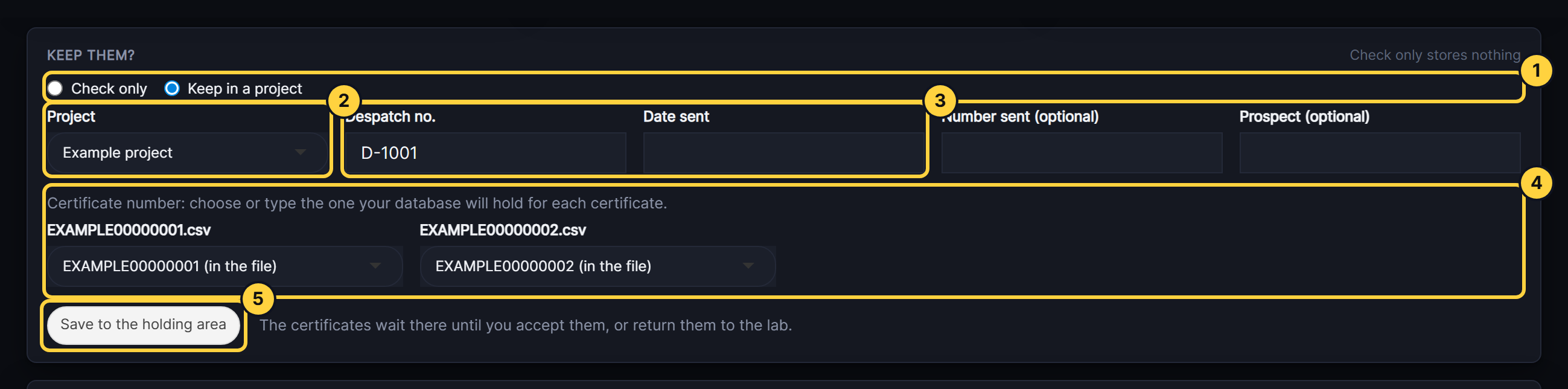
- Check only or Keep in a project: the choice. Nothing is stored when you select Check only.
- Project: choose one or type a new name.
- Despatch no. and Date sent: saved with every certificate in the batch, with the laboratory chosen above the certificates.
- Certificate number: each certificate’s number, as your database will hold it.
- Save to the holding area: saves them.
Result
The Holding area card lists the certificates, each checked again with your account’s set-up, and shows Accept and Return to the lab.
If something goes wrong
- Choose a project, choose the laboratory, or enter the certificate number. The message names what is empty: the Project field, the Laboratory box at the top of the Certificates card, or a certificate’s box under Certificate number. Fill it in, then save again.
- Re-issued certificates? A certificate number is already in the project. Deal with a re-issued certificate.
- Not saved: This file is already in the project, as certificate … The same file cannot be kept twice. A corrected file with the same certificate number is a re-issue.